We've been building developer tools at Creative Tim since 2014. In that time, we've shipped 288 products, served over 2.7m+ developers, and learned one thing the hard way: developers don't want another chatbot. They want something that actually does the work.
That's why OpenClaw caught our attention. It's not a chat wrapper. It's a local AI assistant that connects to your files, your messaging apps, your terminal and actually takes action. We spent a few weeks testing it, and here's everything we learned.
Here's What We'll Cover
- What OpenClaw actually is (and isn't)
- Why it's different from ChatGPT, Claude, or any hosted chatbot
- The fastest way to get started (one-click deploy)
- How to self-host it if you want full control
- Real use cases we've been testing
- The tradeoffs: what works and what doesn't yet
- Security rules you should follow before giving it real access
- Who should use this and who shouldn't
What Is OpenClaw?
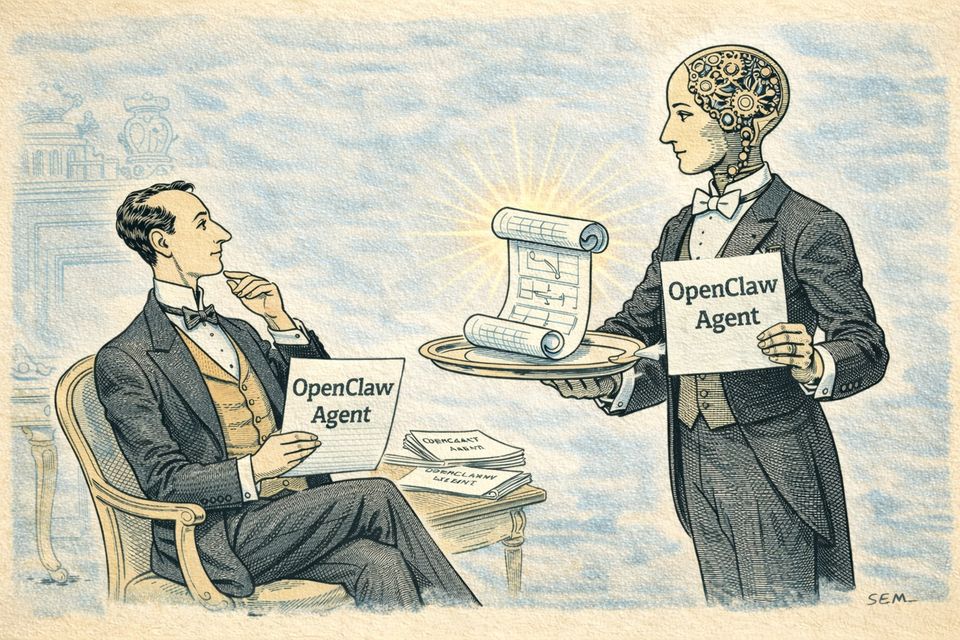
Think of it this way. You know how you use ChatGPT or Claude to answer questions one prompt at a time? OpenClaw is different. It runs on your own machine, remembers context between conversations, and can actually do things: send messages, read files, run shell commands, hit APIs, browse the web.
It sits somewhere between a personal AI assistant and a local automation layer. You install it, connect a model provider (OpenAI, Anthropic, a local model - your choice), pair it with Telegram or Slack or Discord, and then it works like a real assistant that lives on your infrastructure.
The key word here is local-first. Your data stays on your machine. Your config stays on your machine. You decide what it can access and what it can't.
Why It's Different
A lot of tools talk to an LLM. That's not new. What makes OpenClaw interesting is that it combines reasoning with execution.
Instead of answering one question and forgetting everything, OpenClaw keeps memory between interactions. It loads modular skills to extend what it can do. It talks to you through the messaging apps you already use: Telegram, Slack, Discord, WhatsApp. And it interacts with your operating system directly.
"Having a great product is crucial." We've said that since day one at Creative Tim. OpenClaw is a great product because it does real work, not just generates text.
The Fastest Way to Start: One-Click Deployment
Listen. We know what it's like to spend 3 hours setting up infrastructure before you can even test something. We've been there with every product launch since 2014.
That's why we put together a one-click deployment for OpenClaw on Creative Tim. The idea is simple: skip the server setup, skip the SSH, skip the dependency hell. Just launch, configure your model provider, connect Telegram, and start testing.
Here's what the flow looks like:
- Open the Creative Tim OpenClaw deployment page
- Start the managed deployment
- Complete the initial onboarding
- Add your model provider credentials
- Pair a messaging platform (we started with Telegram)
- Start testing prompts and automations
This is the route we'd recommend for product teams validating a concept, founders who want to see it working before committing to self-hosting, or anyone who'd rather spend their first hour testing the assistant instead of installing Node.js.
If you want full control though, self-hosting is the way to go.
Self-Hosting: The Full Setup
For developers who want to run everything on their own infrastructure, here are the paths.
The recommended installer (macOS, Linux, WSL2)
curl -fsSL https://openclaw.ai/install.sh | bash
If you want to install without launching onboarding right away:
curl -fsSL https://openclaw.ai/install.sh | bash -s -- --no-onboard
Windows with PowerShell
iwr -useb https://openclaw.ai/install.ps1 | iex
Without onboarding:
& ([scriptblock]::Create((iwr -useb https://openclaw.ai/install.ps1))) -NoOnboard
npm or pnpm
If you already manage Node.js yourself:
npm install -g openclaw@latest
openclaw onboard --install-daemon
With pnpm:
pnpm add -g openclaw@latest
pnpm approve-builds -g
openclaw onboard --install-daemon
Build from source
git clone https://github.com/openclaw/openclaw.git
cd openclaw
pnpm install
pnpm ui:build
pnpm build
pnpm link --global
openclaw onboard --install-daemon
Docker
Docker is what we'd recommend if you want cleaner isolation. We run a lot of our internal tools in Docker. It keeps things predictable.
./docker-setup.sh
Or the manual Docker Compose route:
docker build -t openclaw:local -f Dockerfile .
docker compose run --rm openclaw-cli onboard
docker compose up -d openclaw-gateway
Quick Checks After Installation
Before you go further, make sure everything is wired up:
openclaw doctor
openclaw status
openclaw dashboard
If those work, you're good. If something fails, the openclaw doctor output usually tells you what's wrong.
One thing we learned: on Windows, WSL2 is more stable than native Windows even though both are supported. And if you're running local models, you'll need serious hardware. If you're using commercial APIs, keep an eye on costs. They add up depending on which model you pick and how much you use it.
Onboarding: This Part Matters More Than the Install
After the binaries are running, the real setup begins. You need to choose a model provider, add API keys, pair a messaging platform, configure workspaces, and decide how much autonomy the assistant gets.
We learned this the same way we learn most things: by making the mistake first. Don't give it full machine access on day one. Start with one model provider, one messaging platform, one workspace, and conservative permissions. Expand later when you trust the setup.
Common Problems
A few things we ran into (and you probably will too):
- Dependency build issues during npm/pnpm install, usually a Node version mismatch
- Docker volume permissions, especially on Linux
- Background services not starting, check the daemon logs
- Too much trust on first setup, start conservative, expand later
If you're troubleshooting, simplify everything first. Strip it down to the minimum viable setup, get that working, then add complexity.
Real Use Cases We've Been Testing
OpenClaw gets interesting when you stop thinking of it as a chatbot and start thinking of it as a workflow assistant. Here's where we've seen it work well.
Research and knowledge management
We've been using it to monitor industry news, summarize product announcements, and maintain a searchable knowledge base. It tracks sources, pulls out key points, and keeps context across sessions so you can ask follow-up questions days later and it remembers.
Team communication
Because it works through Slack and Telegram, it fits naturally into how teams already communicate. We've tested it for summarizing meetings, drafting routine replies, triaging support queues, and aggregating team status updates into weekly reports.
Development workflows
This is where technical users will get the most value. We've used it to analyze logs, document internal APIs, assist with code reviews, and monitor infrastructure. It's like having a junior DevOps assistant that never sleeps.
Content and marketing
We've used OpenClaw to research blog topics, build content calendars, monitor SEO signals, and adapt content across languages. For a team our size (building products for 2.7m+ developers across the world), this kind of automation saves real hours every week.
Personal productivity
On the personal side, it handles structured tasks well: travel planning, expense categorization, project management, learning plans. The common thread is continuity. OpenClaw remembers context and acts across multiple steps, which is what makes it useful.
What Works and What Doesn't
What works great:
The local-first model gives you real control over your data and configuration. The skill-based architecture means you can extend it without bloating the core app. Memory persistence makes multi-step workflows feel natural. And you're not locked into one model provider.
What doesn't work yet:
Setup is technical. Even the smoother install paths assume you know your way around a terminal. Hosted LLM costs can get expensive depending on how heavily you use it. Some skills and workflows still feel rough. And security is a real concern. Broad local access creates a bigger blast radius than a passive chat tool.
This is not something you install casually and forget about.
Security: Take This Seriously
If you plan to use OpenClaw for real work, follow these rules:
- Run it inside Docker or a dedicated VM when you can
- Require confirmation before destructive actions
- Start with least-privilege access to files and tools
- Don't expose control panels to the public internet
- Keep personal credentials separate from experimentation environments
- Review third-party skills before enabling them
OpenClaw is a real tool that solves real problems. But real tools need real security practices.
Who Should Use This?
Good fit:Developers, DevOps engineers, technical founders, automation-focused solo operators, and teams comfortable managing their own infrastructure. If you've self-hosted anything before (a database, a CI server, even a WordPress site), you can handle this.
Not a great fit:If you want a polished consumer app that works out of the box, or if your team doesn't have someone technical enough to maintain and secure it. This is a power tool, not a consumer product.
What's Next?
We're continuing to test OpenClaw across our workflows at Creative Tim, from content creation to internal tooling. We're especially interested in how it pairs with our AI agent tools like GaliChat and how it can fit into the developer experience alongside products like Material Tailwind and David AI.
If you want the fastest path to trying it, the one-click deploy on Creative Tim gets you running in minutes. If you want full control, the self-hosted options are solid.
Thanks for reading! If you have feedback or want to share how you're using OpenClaw, find us here:
- Twitter: @axelut
- Email: [email protected]
- Website: creative-tim.com